


If your Mac wallpaper keeps resetting, the problem may be simpler than it looks. You can choose a downloaded image as your desktop background, enjoy it for days, and then suddenly find macOS showing a different wallpaper again.
One easy-to-miss reason is the original image file. If you set a wallpaper from your Downloads folder and later delete, move, or reorganize that file, macOS may no longer be able to access the image it was using. That can lead to the wallpaper changing back after a restart, login, or other system refresh.
Why Does My Mac Wallpaper Keep Changing Back?
When you choose a custom wallpaper from a file on your Mac, it is smart to treat that original image as part of your wallpaper setup. Setting the image as your background does not necessarily mean you should immediately delete the file you downloaded.
This is easy to overlook because the Downloads folder is temporary by nature. Most of us clean it out regularly without thinking about which files may still be used elsewhere.
That can create a simple sequence:
- You download a wallpaper.
- You set it as your Mac desktop background.
- You later delete or move the file from Downloads.
- The wallpaper may continue appearing normally for a while.
- After a restart, login, or refresh, the background changes or reverts.
The Cleaner Way to Store Wallpapers on a Mac
Instead of keeping wallpapers in Downloads, create a dedicated folder somewhere you will not constantly see or accidentally empty.
A simple location is:
→
Pictures
→
Wallpapers
You can name the folder anything you want. Wallpapers, Desktop Backgrounds, or even a personal collection name all work. The important part is giving the images you want to keep a permanent location.
This also makes a growing wallpaper library much easier to manage. Rather than leaving images scattered across Downloads and the Desktop, you have one place for backgrounds you actually want to reuse.
How to Add a Wallpaper Folder on Mac
Once you create a permanent wallpaper folder, add it directly inside macOS Wallpaper settings.
- Create a permanent folder for your wallpaper images.
- Move the wallpapers you want to keep into that folder.
- Open System Settings.
- Select Wallpaper in the sidebar.
- Scroll to your custom wallpaper sources.
- Click Add Folder.
- Select the wallpaper folder you created.
- Choose your wallpaper from that folder inside Wallpaper settings.
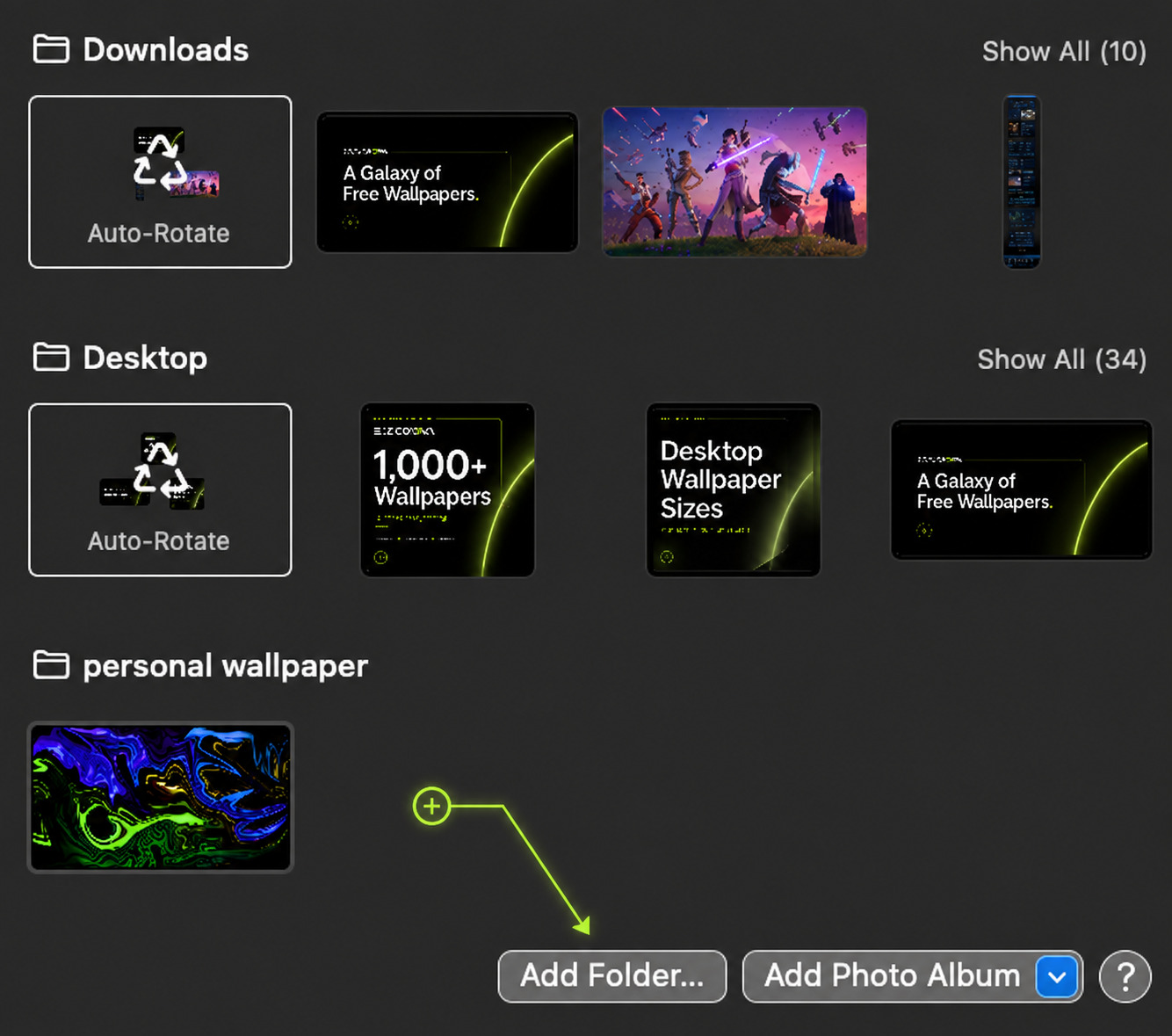
Once the folder is added, its images appear directly inside Wallpaper settings. That gives you a cleaner way to change backgrounds later without searching through old downloads.
Can You Delete a Wallpaper From Downloads After Setting It?
If Downloads is still the only place where the wallpaper file exists, the safer choice is to move it before deleting anything.
First, move the image into your permanent wallpaper folder. Then select that copy from Wallpaper settings. Afterward, you can clean up the Downloads folder without intentionally removing the version you want to keep.
That is the key distinction. You do not need to keep your Downloads folder cluttered forever. You simply need to move wallpapers you want to keep into a permanent library before cleaning temporary files.
Where Should You Save Downloaded Wallpapers on a Mac?
There is no single required folder, but a local directory inside Pictures is a clean choice for most people.
It stays away from everyday Desktop clutter, is less likely to be emptied accidentally, and remains easy to reach through Finder.
If your collection grows, you can also create subfolders for styles such as Nature, Gaming, Cars, Minimal, or AMOLED. However, you do not need an elaborate system. One permanent wallpaper folder is enough to create a reliable setup.
What If Your Mac Wallpaper Still Keeps Resetting?
If the original file still exists and the wallpaper continues to change, move on to the Wallpaper settings themselves.
Look for any background rotation or shuffle option that may be active. Also consider whether you use several desktop Spaces or multiple displays, since different desktops can have different wallpaper behavior.
Run through these basic checks:
- Check the source file: confirm the wallpaper image still exists.
- Open the image: make sure the file itself is still readable.
- Select it again: reapply the wallpaper from System Settings.
- Check rotation: turn off automatic changing if you did not enable it intentionally.
- Check other desktops: review additional Spaces or connected displays.
- Restart the Mac: confirm that the selected background remains after restarting.
If your wallpaper stays selected but looks soft or distorted instead, that is a different problem. Our guide to fixing blurry wallpapers covers resolution, scaling, stretching, compression, and other common causes.
Make Sure the Wallpaper Fits Your Mac Screen
Keeping the source file solves one part of the setup. Choosing the right wallpaper dimensions matters too.
If you are unsure which resolution your Mac uses, start with our guide to finding your screen resolution. Knowing the display dimensions makes it much easier to choose an image that stays sharp.
Laptop users can also compare common display sizes in our best laptop wallpaper sizes guide.
If the dimensions are correct but the image is still cropped awkwardly, our wallpaper fit guide explains how screen shape, cropping, and scaling affect the final result.
You can also browse desktop wallpapers for backgrounds built around common monitor and laptop formats.
A Better Wallpaper Workflow for Mac
The easiest long-term setup is one that removes the Downloads folder from the equation.
Download
Move to your wallpaper folder
Add the folder to macOS
Set your wallpaper
Keep the source file there
This keeps Downloads clean without sacrificing wallpapers you still use. It also turns your backgrounds into a small personal library instead of a collection of temporary files.
When you want a new background, simply download it, move it into the same folder, and choose it from Wallpaper settings.
For a quieter desktop, browse our Minimal wallpapers. If you prefer darker screens, the Dark & AMOLED collection offers another clean option.
Download wallpaper

Move it to a permanent folder

Add that folder in System Settings → Wallpaper

Select the wallpaper from the permanent folder

Keep the source image while you use it

Clean Downloads without deleting your wallpaper library
Mac Wallpaper Resetting FAQ
Why does my Mac wallpaper keep resetting?
A missing or moved source image can be one cause. Check whether the custom wallpaper file still exists, then select it again from Wallpaper settings. Automatic wallpaper rotation, multiple desktop Spaces, or additional displays can also affect which background appears.
Why does my Mac wallpaper change after a restart?
If the wallpaper changes after restarting, first confirm that the original image still exists in the location where you selected it. You should also check Wallpaper settings for automatic rotation and review other desktop Spaces or connected displays.
Can I delete a wallpaper after setting it on my Mac?
It is safer to keep the source image while you are using it as a custom wallpaper. Instead of leaving the file in Downloads, move it into a permanent wallpaper folder and select that copy as your background.
Where should I save downloaded wallpapers on a Mac?
A dedicated folder such as Pictures → Wallpapers is a simple option. It keeps wallpaper files away from temporary Downloads clutter while making them easy to organize and reuse.
How do I add a wallpaper folder on a Mac?
Open System Settings → Wallpaper, scroll to your custom wallpaper sources, choose Add Folder, and select the folder where you store your backgrounds. You can then choose images from that folder inside Wallpaper settings.
What should I check if my Mac wallpaper still keeps changing?
Confirm that the image file still exists, re-select the wallpaper, check for automatic rotation, review additional desktop Spaces or displays, and restart the Mac to see whether the background remains selected.
Does moving a wallpaper file on Mac affect the background?
Moving the source image can change the location macOS expects to use for that custom wallpaper. A cleaner approach is to place wallpapers in a permanent folder first and then select them from that location.
- Why Does My Mac Wallpaper Keep Changing Back?
- The Cleaner Way to Store Wallpapers on a Mac
- How to Add a Wallpaper Folder on Mac
- Can You Delete a Wallpaper From Downloads After Setting It?
- Where Should You Save Downloaded Wallpapers on a Mac?
- What If Your Mac Wallpaper Still Keeps Resetting?
- Make Sure the Wallpaper Fits Your Mac Screen
- A Better Wallpaper Workflow for Mac
- Mac Wallpaper Resetting FAQ
